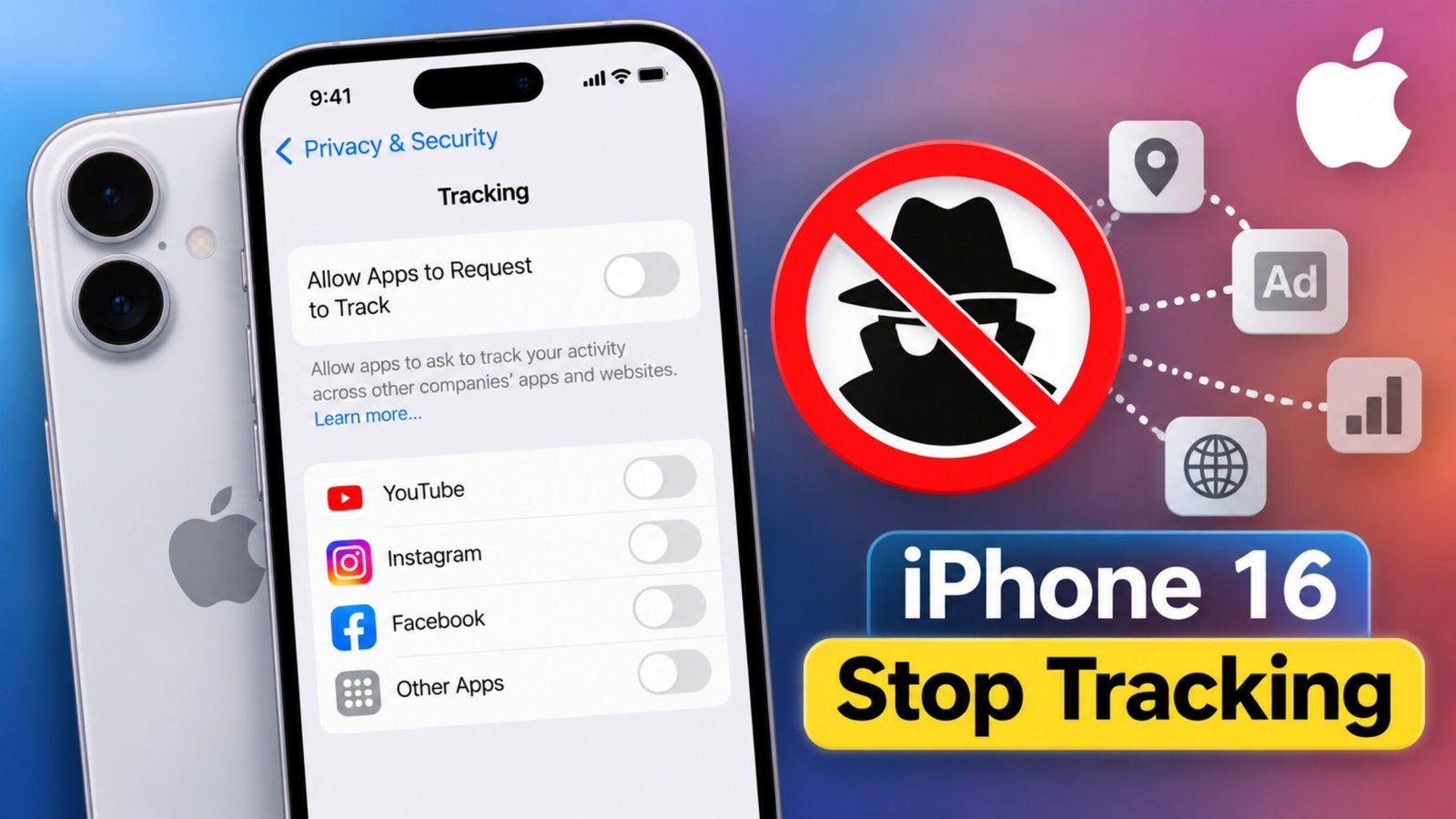
If apps seem to know too much about what you do on your iPhone 16, you can limit a major part of that tracking directly from the phone’s settings. Apple includes a built-in control that prevents apps from requesting permission to track your activity across other apps and websites.
You do not need to install another privacy app or make complicated changes. In this guide, you’ll learn how to turn off app tracking on iPhone 16, what to check if the option is unavailable, and which additional privacy settings are worth reviewing.
How to Stop App Tracking on iPhone 16
The quickest way to limit app tracking is through the Privacy & Security settings.
- Open the Settings app on your iPhone 16.
- Scroll down and select Privacy & Security.
- Tap Tracking.
- Turn off Allow Apps to Request to Track.
Once this setting is disabled, apps cannot show you Apple’s tracking permission request for cross-app and cross-website tracking.
This setting is different from completely stopping an app from collecting information inside its own service. For example, an app may still collect information about activity that happens within the app according to its own privacy practices.
Check Which Apps Have Requested Tracking Permission
After opening Settings > Privacy & Security > Tracking, you may see a list of apps that have requested tracking permission.
If individual apps are listed, review them and check whether you actually want to give them tracking permission.
You can disable permission for an individual app if you previously allowed it.
This is useful if you want more control instead of changing your privacy settings without checking which apps have access.
Don’t Confuse App Tracking With Location Tracking
Turning off app tracking does not automatically stop apps from accessing your location.
These are separate privacy controls.
If you want to review location access:
- Open Settings.
- Go to Privacy & Security.
- Tap Location Services.
- Select an app from the list.
- Choose the location access option that suits your needs.
Before disabling location access, remember that some apps genuinely need your location for features such as maps, navigation or location-based services.
Review Privacy Settings Inside Your Apps
iPhone’s tracking control is only one part of the privacy picture.
Some apps have their own settings for advertising, analytics, personalization and data sharing. These settings can remain active even when you have disabled Apple’s tracking permission.
Open the privacy or account settings of apps you use regularly and look for options related to:
- Personalized advertising
- Ad preferences
- Data sharing
- Analytics
- Activity tracking
- Personalized content
You don’t necessarily need to disable every setting. The important thing is to understand what each option does before changing it.
What If the Tracking Option Is Missing?
If you cannot find Tracking under Privacy & Security, first check whether your iPhone is running an up-to-date version of iOS.
Go to:
Settings > General > Software Update
If an update is available, install it and then check the privacy settings again.
The exact appearance or location of some settings can change between iOS versions, so the menus may not look exactly the same on every device.
What If “Allow Apps to Request to Track” Is Grayed Out?
A privacy setting that cannot be changed may be affected by restrictions or device management.
Check Screen Time settings if the option appears unavailable.
You can also look at:
Settings > General > VPN & Device Management
If your iPhone is provided or managed by an employer, school or another organization, an administrator may have applied restrictions that you cannot change yourself.
In that situation, you may need to contact the organization that manages the device.
Does Turning Off Tracking Remove Ads?
No.
Disabling app tracking does not mean that advertisements will disappear from your iPhone or from the apps you use.
You may still see ads, but Apple’s tracking permission system is designed to give you more control over whether apps can track your activity across other companies’ apps and websites.
Some apps may also use information you provide directly to personalize content or advertising, subject to their own privacy policies and settings.
How to Reduce Personalized Advertising Further
If your goal is to reduce personalized advertising as much as possible, don’t stop at the tracking setting.
Review the advertising-related privacy options available on your iPhone and inside the apps you use.
You can also check:
Settings > Privacy & Security > Apple Advertising
If an advertising personalization option is available on your version of iOS, review it and change it according to your preference.
Keep in mind that reducing personalization does not necessarily remove advertisements altogether.
App Tracking vs Notifications
If your real problem is constant pop-ups and alerts, turning off tracking will not solve it.
Tracking and notifications are two different things.
To manage notifications for an app:
- Open Settings.
- Tap Notifications.
- Select the app.
- Change its notification permissions and alert settings.
You can turn notifications off completely or keep only the alerts you actually want.
Useful Privacy Habits for iPhone 16
Once you’ve changed the main tracking setting, a few simple habits can help you keep your privacy settings under control.
- Review permissions occasionally: Check which apps can access your location, photos, contacts, microphone and other information.
- Be careful with new apps: Don’t automatically allow every permission request.
- Check app privacy settings: Some services have separate controls for advertising and personalization.
- Review location access: Give location permission only when it makes sense for the app.
- Check Screen Time restrictions: Restrictions can affect whether certain privacy settings can be changed.
- Review settings on other devices: If you use multiple Apple devices, check their privacy settings rather than assuming every setting is identical.
Common Questions
Will turning off app tracking delete my apps?
No. Disabling tracking does not remove your apps, accounts, photos, messages or purchases. It changes the permissions related to app tracking.
Can apps still collect information after I disable tracking?
Yes. Turning off Apple’s tracking permission does not prevent every form of data collection. An app can still process information related to activity within its own service, depending on its features and privacy practices.
Why am I still seeing personalized ads?
Advertising personalization can come from information you provide directly to an app or from that service’s own systems. Apple’s tracking permission is only one part of the overall advertising process.
Can I enable tracking again later?
Yes. You can return to Settings > Privacy & Security > Tracking and change the available tracking settings later.
Does this also block location tracking?
No. Location access is controlled separately under Privacy & Security > Location Services.
What should I do if the tracking setting is unavailable?
Check for iOS updates, review Screen Time restrictions and look at VPN & Device Management if the iPhone is managed by an organization.
Also Read: How to Factory Reset iPhone 16: Step-by-Step Guide
Final Thoughts
Stopping app tracking on an iPhone 16 takes only a few moments. The main setting to check is Settings > Privacy & Security > Tracking, where you can control whether apps can request permission to track your activity across other apps and websites.
For broader privacy protection, also review location permissions, app-specific privacy controls and advertising preferences. These settings work together to give you more control over the information apps can access and how that information may be used.