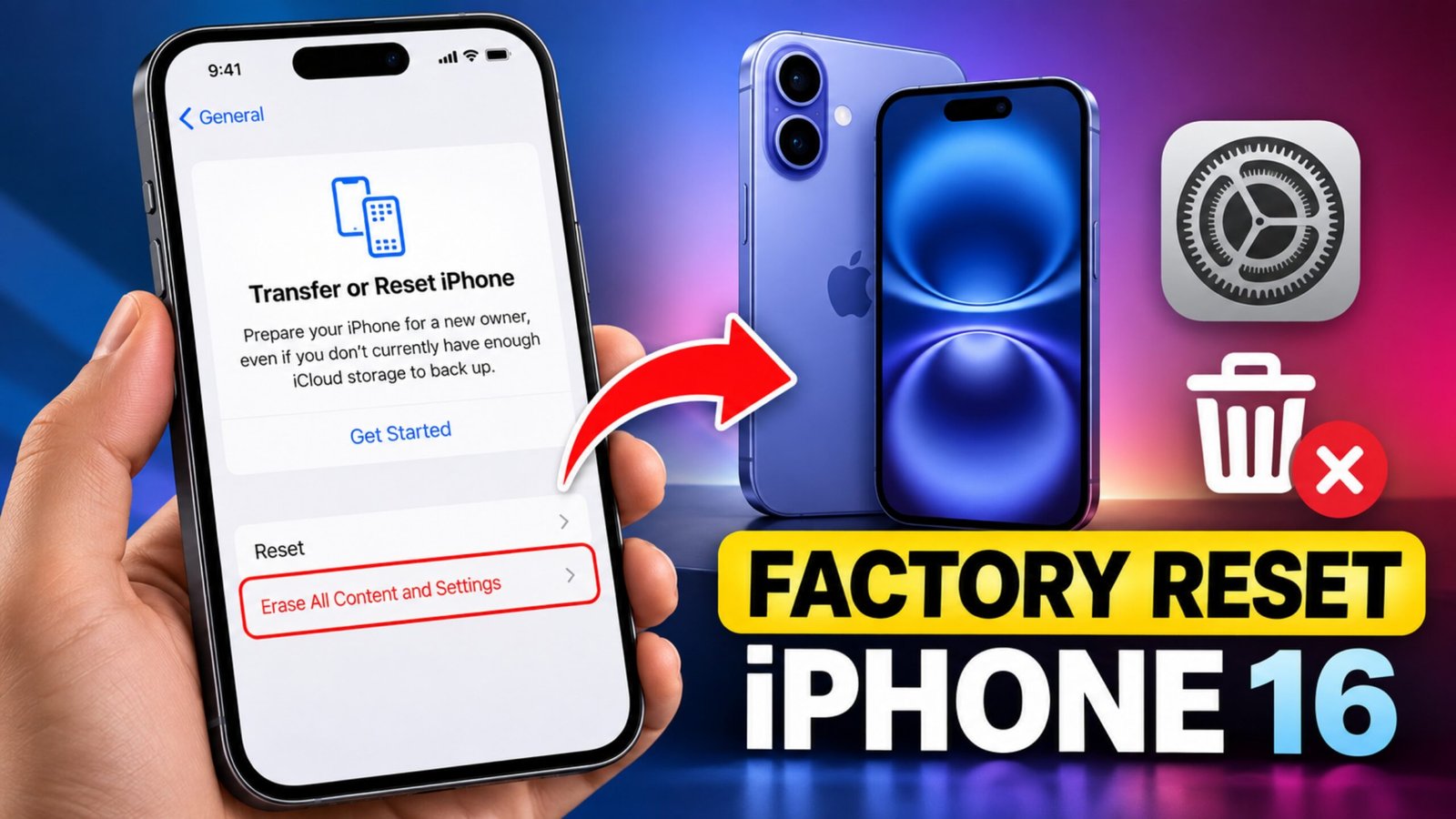
If you want to sell your iPhone 16, give it to someone else, troubleshoot a serious software problem, or simply start over, a factory reset can remove your personal information and return the device to its initial setup state.
Before resetting, however, you should make sure important data is backed up and that you know your Apple Account credentials. A reset removes content from the iPhone, so preparation matters.
This guide explains how to factory reset an iPhone 16 from Settings, what to do before starting, and what options you have if the phone is disabled, frozen, or you cannot access Settings.
What Happens When You Factory Reset an iPhone 16?
A factory reset erases the content and settings stored on the iPhone. This can include:
- Personal photos and videos
- Installed apps and their locally stored data
- Messages and other personal information
- Saved settings and preferences
- Accounts and other information stored on the device
After the process is complete, the iPhone starts from the setup screen, allowing it to be configured again.
Important: A factory reset is not something to do casually if you have important files that are not backed up.
What to Do Before Factory Resetting Your iPhone 16
Take a few minutes to prepare the phone before starting the reset.
1. Back Up Important Data
If you want to keep your photos, contacts, messages, or other information, make sure they are backed up before erasing the iPhone.
You can use your normal Apple backup or transfer your important information to another device, depending on your setup.
2. Make Sure You Know Your Apple Account Password
Keep your Apple Account credentials available. You may need them during the process, and you could also need them when activating the iPhone afterward.
3. Check Anything You Still Need
Look through the phone for information that might not already be backed up. This is particularly important for files, photos, notes, or app data that you cannot easily recover.
4. If You’re Giving the iPhone Away
If you’re selling or giving your iPhone 16 to another person, make sure your personal information and account association are properly removed before handing over the device.
How to Factory Reset iPhone 16 From Settings
If your iPhone 16 is working normally and you can unlock it, resetting through Settings is the simplest option.
- Open the Settings app.
- Tap General.
- Scroll down and select Transfer or Reset iPhone.
- Tap Erase All Content and Settings.
- Review the information shown on the screen.
- Follow the prompts to continue.
- Enter your passcode or Apple Account credentials if requested.
- Confirm that you want to erase the iPhone.
- Keep the iPhone powered on and allow the reset process to finish.
Once the erase is complete, the iPhone will restart and display the setup screen.
How Long Does an iPhone 16 Factory Reset Take?
The exact amount of time can vary. During the reset, the phone may appear to pause while it completes the erasing process.
If it seems like nothing is happening, don’t immediately force the phone to restart. Keep it connected to power and give the process additional time.
Interrupting the process unnecessarily can create additional problems.
What If You Can’t Access Settings?
If your iPhone 16 is disabled, frozen, or you cannot use the Settings app, the normal reset procedure may not be available.
In that situation, a computer and recovery mode can provide an alternative way to restore the device.
The general process involves:
- Connecting the iPhone to a Mac or Windows PC.
- Putting the iPhone into recovery mode.
- Opening the appropriate device-management software on the computer.
- Selecting the option to restore the iPhone.
- Waiting for the restore process to complete.
This method is particularly relevant when you cannot unlock or normally operate the iPhone.
What If the iPhone 16 Is Frozen?
If the phone is temporarily unresponsive, a factory reset may not be the first thing you should try.
A force restart can sometimes resolve a temporary freeze without immediately erasing your data.
If the problem continues and you still cannot access Settings, recovery mode can be considered.
A factory reset should be treated as an erase operation, not simply as another way of restarting the phone.
What Happens After the Reset?
After successfully erasing the iPhone 16, you’ll see the initial setup experience.
You’ll then be able to configure the phone again, including connecting it to Wi-Fi and signing in with your Apple Account.
If you restored or backed up your information beforehand, you can use the available setup options to recover your data.
What If Activation Doesn’t Work After the Reset?
A factory reset does not necessarily remove Activation Lock associated with an Apple Account.
If the iPhone asks for the Apple Account previously associated with the device during activation, you’ll need the appropriate account credentials to continue.
For a phone you’re selling or giving away, this is especially important. Don’t assume that erasing the device alone automatically removes every account-related security feature.
Common Mistakes to Avoid
Before tapping the final erase confirmation, check these points:
- Don’t reset before backing up important data.
- Don’t forget your Apple Account credentials.
- Don’t interrupt the reset simply because the screen appears to pause.
- Don’t hand the phone to another person without properly removing your personal information and account association.
- Don’t confuse a force restart with a factory reset. A force restart is intended to restart an unresponsive device; a factory reset erases its content and settings.
Factory Reset vs Force Restart
These two actions serve very different purposes.
| Action | What it does | Erases personal data? |
|---|---|---|
| Force restart | Restarts an unresponsive iPhone | No |
| Factory reset | Erases content and settings | Yes |
| Recovery-mode restore | Uses a computer to restore the iPhone when normal access isn’t possible | Yes |
If the phone is simply frozen, a force restart may be appropriate. If you want to completely erase the device, use the factory-reset process.
Frequently Asked Questions
Does a factory reset delete everything on an iPhone 16?
A factory reset erases the content and settings stored on the iPhone. Make sure important information is backed up before proceeding.
Can I factory reset an iPhone 16 without opening Settings?
Yes. If you cannot access Settings, recovery mode with a computer provides an alternative restoration method.
Will a factory reset remove Activation Lock?
No. A reset should not be treated as a way to bypass Activation Lock. The Apple Account previously associated with the device may still be required for activation.
What should I do if the reset appears stuck?
Keep the iPhone connected to power and allow it additional time to complete. If it remains unresponsive, you can consider a force restart or recovery-mode restore depending on the situation.
Should I factory reset my iPhone before selling it?
If you’re selling or giving away the phone, erasing your personal content and properly handling the Apple Account association are important steps before transferring the device to someone else.
Conclusion
Factory resetting an iPhone 16 is relatively simple when the phone is working normally: open Settings, go to General, select Transfer or Reset iPhone, and choose Erase All Content and Settings.
The important part is what happens before you reset. Back up anything you need, make sure you have your Apple Account credentials, and don’t interrupt the process unnecessarily. If the iPhone is disabled or you cannot access Settings, recovery mode with a computer is an alternative.
1 thought on “How to Factory Reset iPhone 16: Step-by-Step Guide”